Best Practice Analyzer
The Best Practice Analyzer (BPA) lets you define rules on the metadata of your model, to encourage certain conventions and best practices while developing your Power BI or Analysis Services Model.
BPA Overview
The BPA overview shows you all the rules defined in your model that are currently being broken:
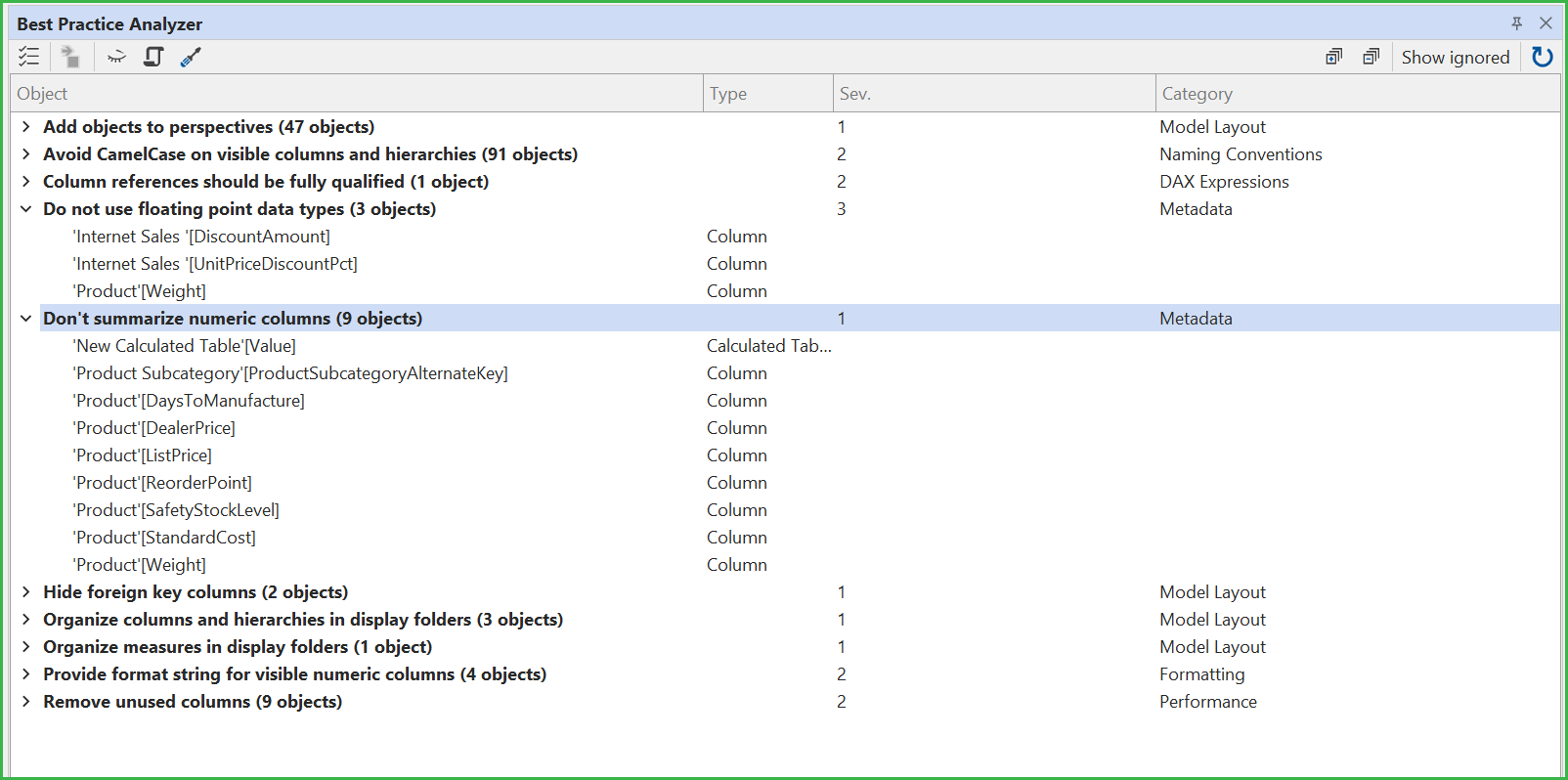
And you will always be able to see in the main UI how many rules you are currently being broken.

Clicking the link (or pressing F10), brings up the full BPA window.
Note
If you are more into a video walk through then PowerBI.tips has a video with our own Daniel Otykier showing the Best Practice Analyzer in detail here:
Functionality
Whenever a change is made to the model, the Best Practice Analyzer scans your model for issues in the background. You can disable this feature under File > Preferences.
The BPA Window in both TE2 and TE3 allows you to dock the window on one side of your desktop, while keeping the main window in the other side, allowing you to work with your model while you can see BPA issues.
The Best Practice Analyzer window continuously lists all the effective rules on your model as well as the objects that are in violation of each rule. Right-clicking anywhere inside the list or using the toolbar buttons at the top of the window, let's you perform the following actions:
- Manage rules...: This opens the Manage Rules UI, which we will cover below. This UI can also be accessed through the "Tools > Manage BPA Rules..." menu of the main UI.
- Go to object...: Choosing this option or double-clicking on an object in the list, takes you to the same object in the main UI.
- Ignore item/items: Selecting one or more objects in the list and choosing this option, will apply an annotation to the chosen objects indicating that the Best Practice Analyzer should ignore the objects going forward. If you ignored an object by mistake, toggle the "Show ignored" button at the top of the screen. This will let you unignore an object that was previously ignored.
- Ignore rule: If you've selected one or more rules in the list, this option will put an annotation at the model level that indicates, that the selected rule should always be ignored. Again, by toggling the "Show ignored" button, you can unignore rules as well.
- Generate fix script: Rules that have an easy fix (meaning the issue can be resolved simply by setting a single property on the object), will have this option enabled. By clicking, you will get a C# script copied into your clipboard. This script can then be subsequently pasted into the Advanced Scripting area of Tabular Editor, where you can review it before executing it to apply the fix.
- Apply fix: This option is also available for rules than have an easy fix, as mentioned above. Instead of copying the script to the clipboard, it will be executed immediately.
Managing Best Practice Rules
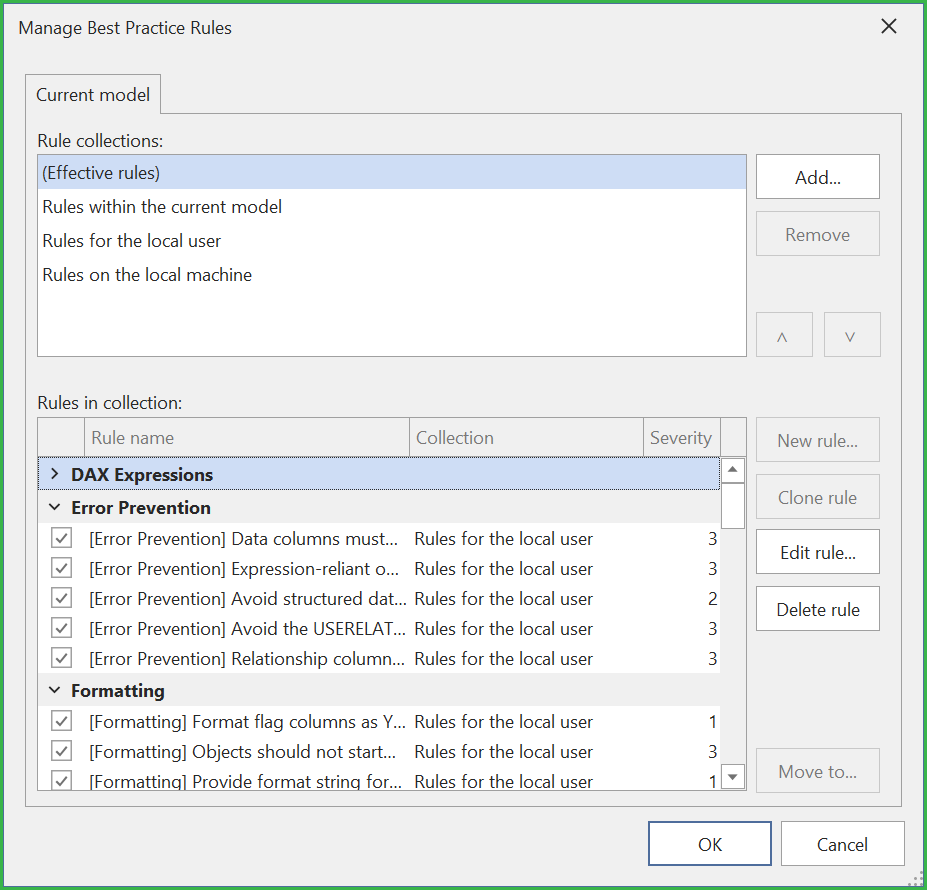
If you need to add, remove or modify the rules applying to your model, there's a specific UI for that. You can bring it up by clicking the top-left button on the Best Practice Analyzer window, or by using the "Tools > Manage BPA Rules..." menu item in the main window.

The Manage BPA rules window contains two lists: The top list represents the collections of rules that are currently loaded. Selecting a collection in this list, will display all the rules that are defined within this collection in the bottom list.